
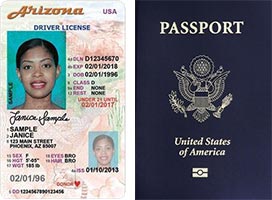
 The Maricopa Community Colleges require students to submit valid form(s) of identification for authentication. This allows us to confirm a student's identity and prevent identity theft. Students can submit their identification online through the task list in their Student Center or in person at any of our Admissions, Records, and Registration offices.
Verifying your identity is important to both you and us, which is why we request that you provide a government-issued photo ID.
Note: Students must submit their own ID.
Failure to provide a government-issued photo ID in a timely manner will result in your financial aid award being canceled. This may result in being dropped from your classes for non-payment of tuition.
Note: If you no longer plan to attend courses, please drop your classes.
A current government-issued photo ID will be accepted from the following
- State-issued driver’s license, identification license, or instruction permit
- U.S. passport or passport card
- Foreign passport with a U.S. visa
- U.S. citizenship and immigration services employment authorization document or refugee travel document
- U.S. permanent resident card
- U.S. military ID card (active duty, reserve, and retired)
- Matricula Consular
- Other international government identification
- Tribal ID
- Current K-12 student ID
- Any current, valid government-issued photo ID
How to Submit Your Identification
Follow the steps below to submit your identification securely through your Student Center.
- Log in to your Student Center.
- Review your Task List for any outstanding identification tasks.
- Select your College from the drop-down menu.
- Choose the appropriate type of ID being submitted.
- Acknowledge that the information being submitted is accurate and provide permission to share the document among the Maricopa Community Colleges.
- Use a scanner or digital camera (such as a phone camera) to create a color file of your identification. Make sure the whole document is captured and clearly legible.
- Note: Your form submission may be rejected if the image does not meet these requirements, and you will be required to resubmit your identification.
- Select the Upload button to browse your files. Locate and select the image of your identification, and then click the Upload File button.
- Note: If you uploaded the wrong file, the Replace button will be available for you to make any necessary changes.
- Upload any additional files by repeating Step 7.
- Once you have uploaded all your identification, click the Submit button.
- You have successfully submitted your form.